How to Add Text to a GIF - Free Tools & Easy Methods
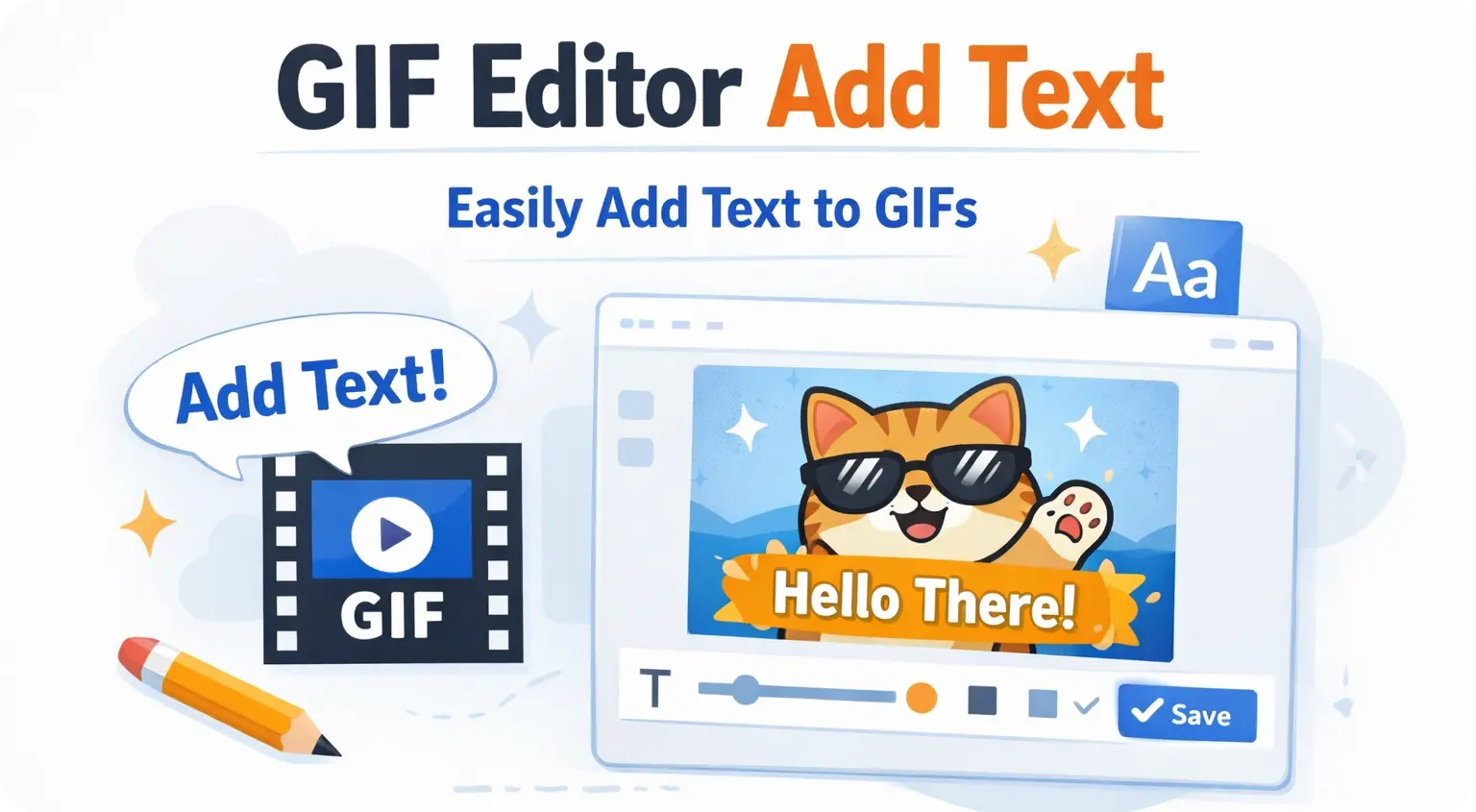
A Simple Guide to Adding Text to GIFs
GIFs are powerful. They grab attention, explain ideas quickly, and make content more engaging. But a plain GIF is often not enough. When you add text to a GIF, you turn it into a meme, a tutorial snippet, a reaction post, or even a mini ad.
If you’re searching for a reliable way to overlay text on your animations, this guide will walk you through everything. From tools to best practices, you’ll learn how to create clean, readable animated GIFs with text overlays.
Why Add Text to a GIF?
Text transforms a simple animation into a message.
Here’s what adding text can do:
- Explain what’s happening in a tutorial GIF
- Add subtitles for silent autoplay on social media
- Turn reactions into viral memes
- Highlight features in product demos
- Add branding or calls to action
On platforms like Twitter, LinkedIn, and Instagram, most videos autoplay without sound. That’s why GIF text overlay is not optional anymore. It’s necessary.
What Makes a Good GIF Text Editor?
Not all GIF editors are built the same. A good tool should allow you to:
- Add static or animated text
- Control font size and style
- Adjust position frame by frame
- Customize color and background
- Preview before downloading
- Export without ruining animation quality
The key is balance. You want readable text without increasing the file size too much.
Best Tools to Add Text to a GIF
Here are some reliable GIF editor tools you can use.
1. FreeGIFTools (Online GIF Editor)
If you want a fast browser-based solution, FreeGIFTools lets you upload your file and add text to GIF online without installing anything.
Why it’s useful:
- Simple interface
- Works on desktop and mobile
- No software required
- Quick export
Best for: Tutorials, captions, lightweight branding.
2. EZGIF
EZGIF is one of the most popular online tools for editing GIFs.
Features:
- Frame-by-frame editing
- Text overlay customization
- Resize, crop, optimize options
- Convert video to GIF
Best for: Advanced control without heavy software.
3. Canva
Canva is not just for graphics. You can upload a GIF and add animated or static text easily.
Why choose Canva:
- Beautiful fonts
- Drag-and-drop editing
- Easy brand consistency
- Social media templates
Best for: Marketing, Instagram posts, branded content.
4. Kapwing
Kapwing is more video-focused but works well as a GIF text editor.
Highlights:
- Timeline editing
- Subtitle generator
- Animated text effects
- Cloud-based collaboration
Best for: Content creators and YouTubers.
Step-by-Step: How to Add Text to a GIF
Here’s a simple workflow you can follow with most tools.
Step 1: Upload Your GIF
Choose your file from your device. Most editors support drag-and-drop.
Step 2: Add Text Layer
Click on “Add Text” or “Text Overlay.”
Type your caption, headline, or subtitle.
Step 3: Customize Styling
Adjust:
- Font
- Size
- Color
- Background box
- Stroke or shadow for contrast
Pro tip: White text with a black shadow works almost everywhere.
Step 4: Position the Text
Place it where it doesn’t block important motion.
For tutorials, top or bottom placement works best.
Step 5: Adjust Timing
Some editors allow you to show text only during specific frames.
Use this if you’re explaining steps in sequence.
Step 6: Export and Download
Choose optimized settings to avoid increasing file size too much.
Best Practices for GIF Text Overlay
Adding text is easy. Doing it well takes thought.
1. Keep It Short
GIFs are fast. Long paragraphs don’t work.
Use 3-8 words when possible.
2. Use High Contrast
Avoid light text on bright backgrounds.
Add a semi-transparent black background if needed.
3. Think About Mobile
Most people see GIFs on phones.
Make text large enough to read on small screens.
4. Avoid Overcrowding
Too much text kills the visual impact.
One clear message is better than five confusing ones.
5. Optimize After Editing
Text overlays can increase file size.
Use a GIF compression tool after editing to keep it lightweight.
Common Mistakes to Avoid
- Using tiny fonts
- Placing text over faces
- Adding too many colors
- Ignoring aspect ratio
- Exporting at original huge resolution
If your GIF is 1920x1080 but used on social media, resize it first. A 480x480 or 720x720 version is usually enough.
Use Cases for Text on GIFs
Here are practical examples:
- Developers showing UI animations with step labels
- Marketers adding “Limited Offer” banners
- Creators turning clips into meme reactions
- Educators adding subtitles to silent demos
- Brands adding watermark logos
It’s simple but powerful.
Conclusion
Using a GIF editor to add text is one of the easiest ways to upgrade your content. A plain animation becomes a clear message. A reaction becomes a meme. A demo becomes a tutorial.
The process is simple:
Upload → Add text → Style → Export → Optimize.
Focus on clarity. Keep text short. Maintain contrast. And always preview before downloading.
Once you get the hang of it, you’ll start seeing opportunities everywhere to turn ordinary GIFs into engaging, scroll-stopping visuals.
Frequently Asked Questions
How do I add text to a GIF for free?
You can use online tools like FreeGIFTools, EZGIF, or Canva. Upload your GIF, add text, customize it, and download the updated file.
Can I animate text inside a GIF?
Yes. Some editors allow animated text effects like fade-in or slide-in. Tools like Kapwing and Canva support this.
Will adding text increase GIF file size?
Yes, slightly. After editing, you can compress the GIF to reduce file size without losing noticeable quality.
What is the best font for GIF text?
Simple, bold fonts work best. Sans-serif fonts with high contrast are easiest to read on small screens.
Can I add subtitles to a GIF?
Yes. You can manually add text frame by frame or use editors that allow timeline-based subtitles.

Written by Pradip Kaity
Software engineer & creator of FreeGifTools. Passionate about building fast, accessible browser-based tools for creators and developers.
Connect on LinkedIn →