
How to Post a GIF on Instagram & TikTok (Convert GIF to MP4 in Seconds)
How to Post a GIF on Instagram & TikTok (Convert GIF to MP4 in Seconds)
You found the perfect animated reaction meme or created a custom animated graphic, and you want to share it with your followers on Instagram or TikTok. You open the app, pick the .gif file from your camera roll, hit upload, and… nothing happens.
Instead of a lively, looping animation, your post appears as a completely frozen, lifeless still image.
If you have experienced this frustration, you are not alone. Neither Instagram nor TikTok supports raw .gif file uploads for regular feed posts, Stories, or short-form video feeds like Reels.
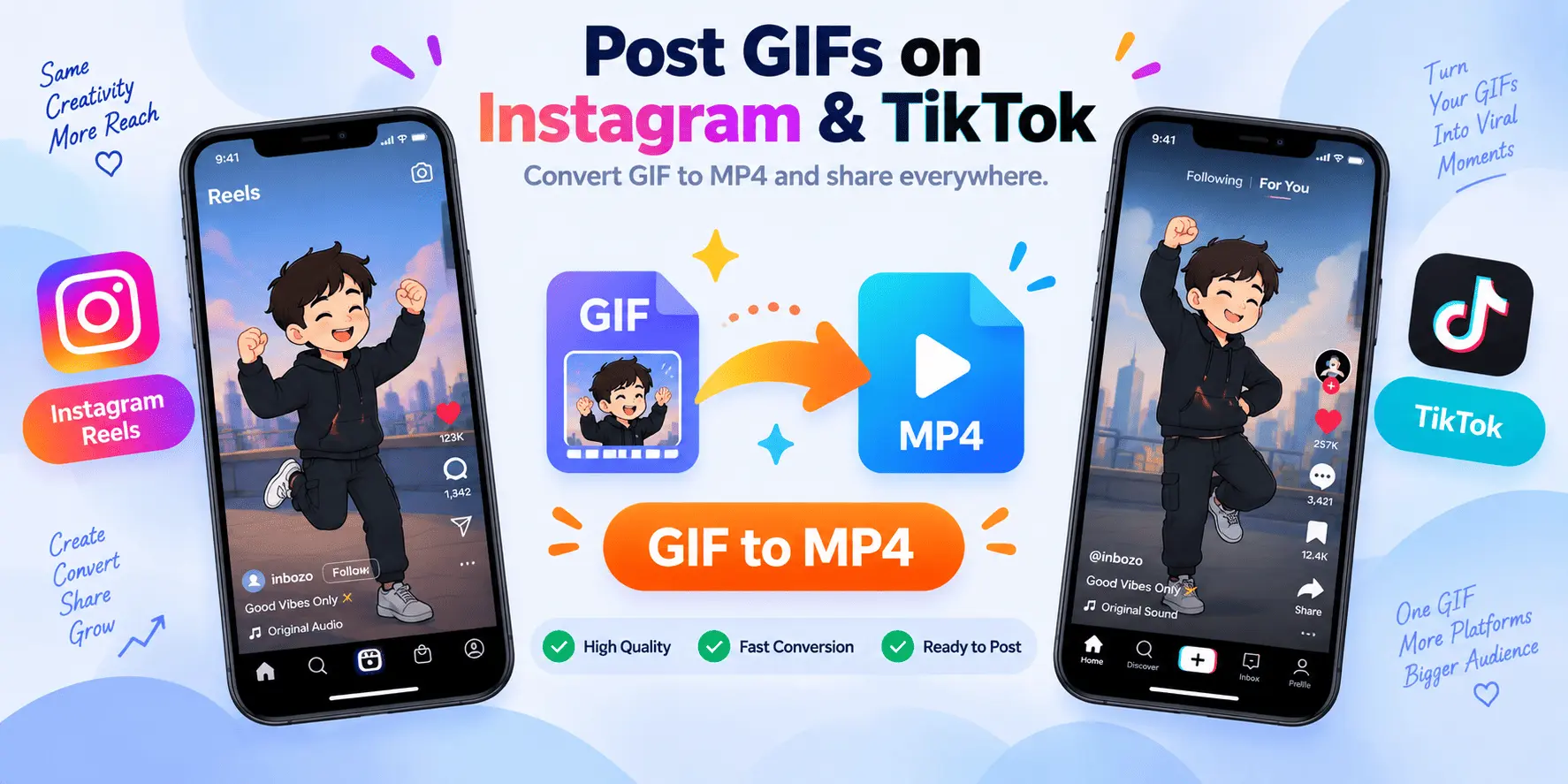
The good news? You can easily post any animated GIF to Instagram and TikTok by converting it into a lightweight, looping MP4 video. In this comprehensive guide, you will learn why social media platforms block native GIFs, the ideal aspect ratios and video lengths for 2026, and the exact step-by-step workflow to convert GIF to video for Reels and TikTok in under thirty seconds.
Why Don’t Instagram and TikTok Support Direct GIF Uploads?
To understand why your uploads freeze, it helps to understand the fundamental difference between image formats and video streams.
Although GIFs look like videos, the .gif format is technically an image format created in 1987. It stores animations by stacking full image frames sequentially inside a single file. Because GIFs lack modern video compression (such as H.264 or HEVC codecs), they suffer from three major drawbacks:
- Massive File Sizes: A 5-second GIF can easily reach 15MB to 20MB, whereas an equivalent MP4 video is often under 500KB.
- Lack of Audio Channels: GIFs cannot store sound data.
- Bandwidth Inefficiency: Mobile social media feeds rely on instant video streaming pipelines. Decoding large raw GIF frame buffers consumes excessive phone RAM and cellular data.
When you upload a .gif to Instagram’s or TikTok’s mobile app, the media processing engine identifies the file header as an image and extracts only the first static frame, discarding the rest of the animation.
The Solution: Converting your .gif into an MP4 video file (H.264) allows Instagram and TikTok to process your animation as a standard high-definition video, preserving smooth playback, crystal-clear colors, and looping capabilities.
Social Media GIF Specs & Aspect Ratio Cheat Sheet
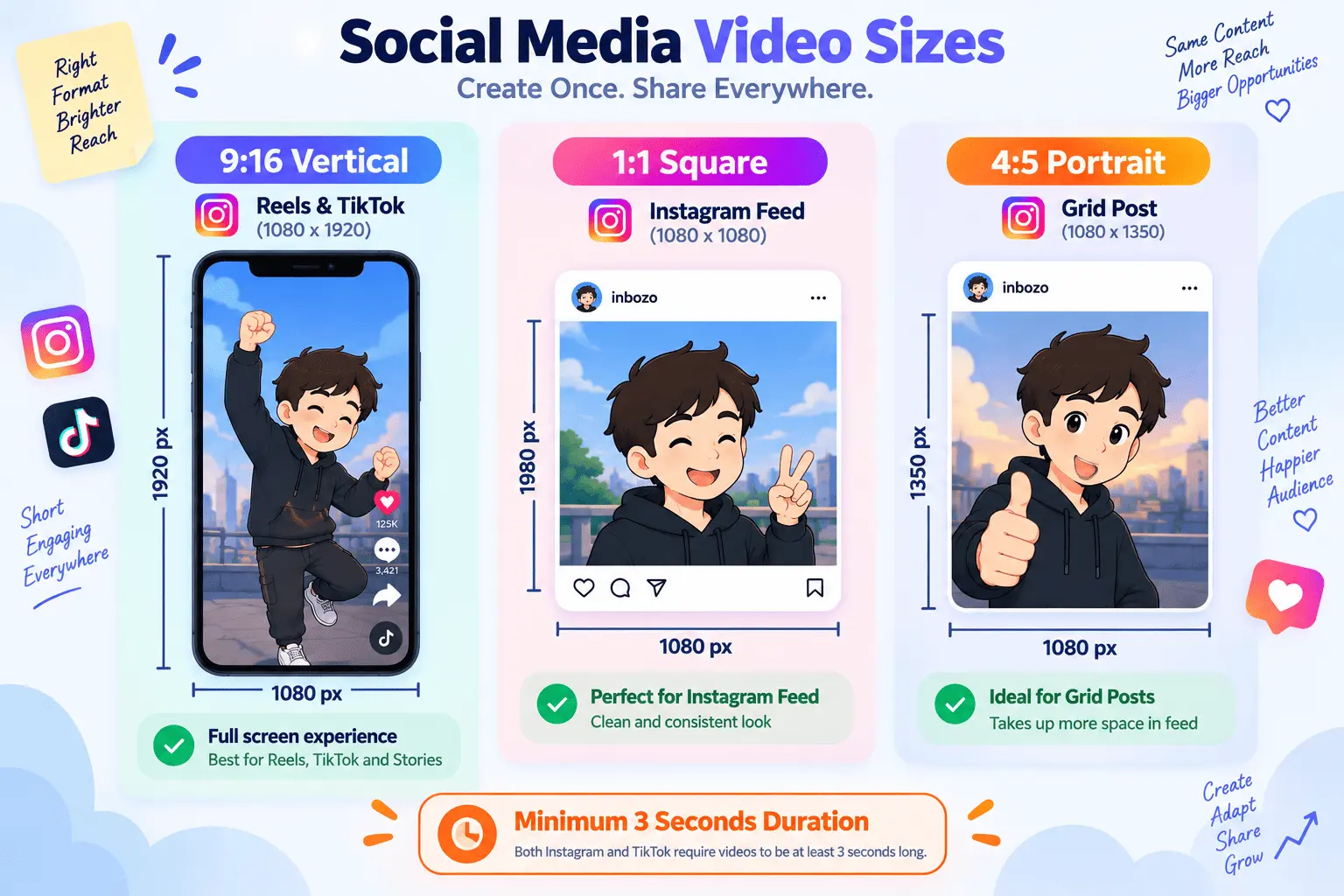
Before you convert your animation, you must format it to match each platform’s optimal dimensions and minimum duration requirements:
| Platform & Placement | Recommended Aspect Ratio | Optimal Resolution | Minimum Duration | Max Duration |
|---|---|---|---|---|
| Instagram Reels | 9:16 (Vertical) | 1080 × 1920 px | 3 seconds | 90 seconds |
| Instagram Stories | 9:16 (Vertical) | 1080 × 1920 px | 3 seconds | 60 seconds |
| Instagram Feed (Square) | 1:1 (Square) | 1080 × 1080 px | 3 seconds | 60 minutes |
| Instagram Feed (Portrait) | 4:5 (Vertical) | 1080 × 1350 px | 3 seconds | 60 minutes |
| TikTok Feed | 9:16 (Full Screen) | 1080 × 1920 px | 3 seconds | 10 minutes |
⚠️ Critical Rule (The 3-Second Threshold): Both TikTok and Instagram Reels automatically reject or flag videos shorter than 3 seconds. Since many reaction GIFs last only 1.0 to 1.5 seconds, you must loop your GIF 2 or 3 times during conversion so the resulting MP4 exceeds the 3-second minimum!
How to Convert and Post a GIF on Instagram & TikTok (Step-by-Step)
Follow this quick 4-step tutorial to convert your GIF and publish it flawlessly on any social network.
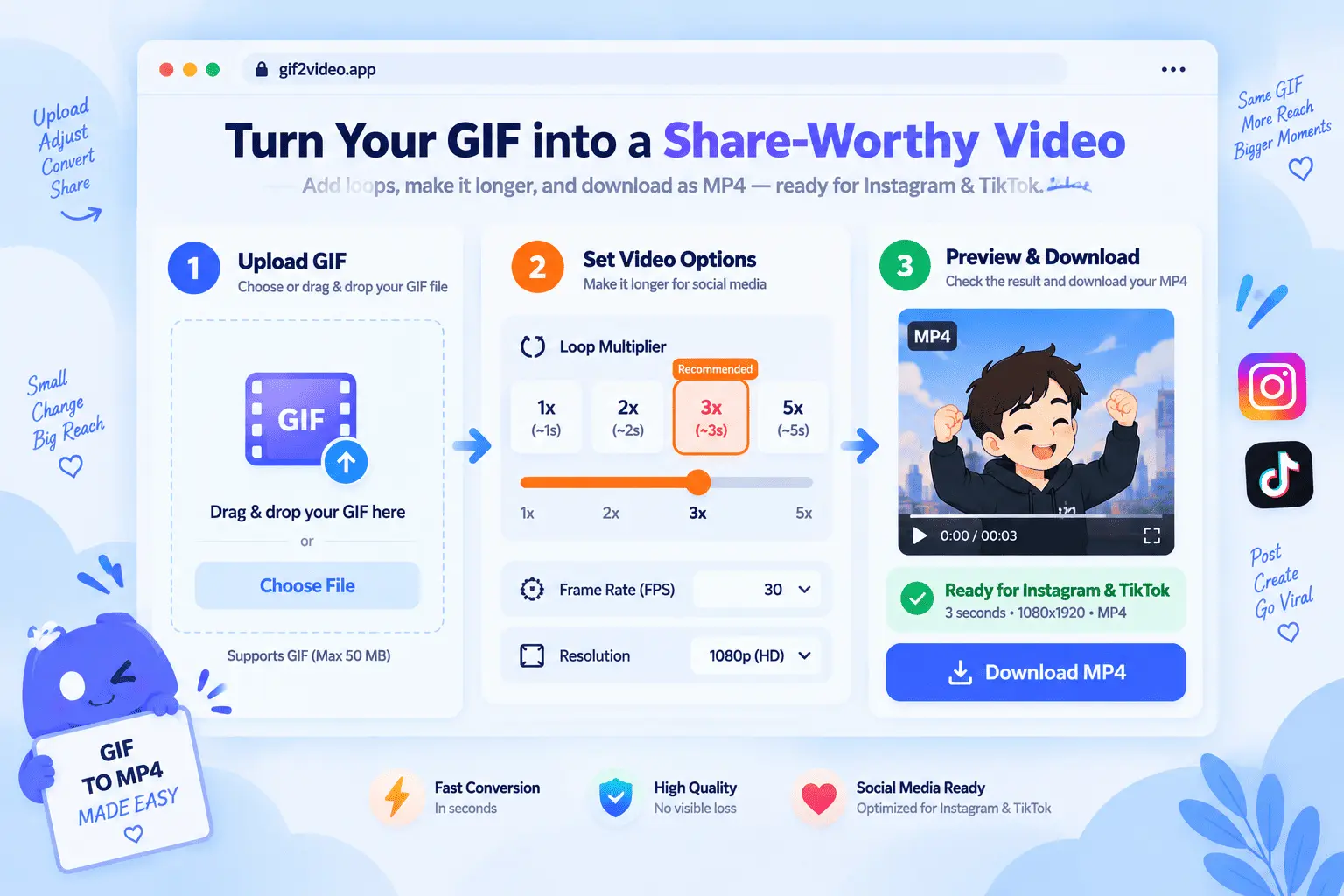
Step 1: Upload Your Animation to Free GIF to MP4 Converter
- Open your browser on desktop or mobile and navigate to the GIF to MP4 Video Converter.
- Drag and drop your
.giffile into the upload zone, or click Choose File to pick it from your photo library. - The browser-based converter processes your file locally, meaning your private media is never uploaded or stored on external servers.
Step 2: Set the Loop Multiplier (Fixing the “Video Too Short” Error)
As highlighted in the specs table, social media platforms require a minimum 3-second video duration:
- If your original GIF is 1 second long, set the loop count to 3x or 4x (resulting in a 3–4 second MP4).
- If your GIF is 2 seconds long, set the loop count to 2x or 3x (resulting in a 4–6 second MP4).
Looping the animation seamlessly extends the runtime without disrupting the natural flow of your meme or visual graphic.
Step 3: Convert and Download Your MP4 File
- Click Convert to MP4.
- Within seconds, the tool encodes the GIF frames into an ultra-smooth, lightweight H.264 MP4 video.
- Tap Download MP4 to save the converted video directly to your camera roll or downloads folder.
Step 4: Publish to Instagram or TikTok
Now that your file is formatted as an MP4, you can share it just like any regular video:
Posting on Instagram (Reels & Feed):
- Open the Instagram app and tap the + (Create) button.
- Select Reel or Post, then choose your newly downloaded MP4 video.
- Adjust the cover frame and crop mode (choose 1:1 for grid or 9:16 for full-screen Reels).
- Add background audio, trending music, or voiceovers if desired.
- Write your caption, add relevant hashtags, and tap Share.
Posting on TikTok:
- Open TikTok and tap the + button at the bottom center.
- Tap Upload next to the record button.
- Select your converted MP4 video clip.
- Add trending sounds, captions, and text overlays.
- Tap Next, write your video description, and hit Post.
Alternative Method: Using GIPHY Stickers on Instagram Stories
If you only want to overlay a small floating animated graphic onto an existing photo or video Story rather than publishing a standalone video post:
- Open Instagram Stories and capture or upload your background photo/video.
- Tap the Sticker icon (the smiling square sticker at the top right).
- Tap the GIF search bar powered by GIPHY.
- Search for your desired keyword or meme reaction.
- Tap the sticker to place and resize it anywhere on your story.
When to use GIPHY vs. MP4 Conversion: GIPHY stickers are great for quick decorative overlays. However, if you want to publish a custom brand animation, high-resolution meme, or full-length GIF post to your main feed or Reels, converting your own file via GIF to MP4 is the only method that gives you full control over resolution, framing, and looping.
Pro-Tips to Make Your Social Media GIF Posts Go Viral
- Perfect the Seamless Loop: The best GIF videos replay so fluidly that viewers watch them multiple times without noticing when the clip restarts. High view loops signal strong viewer retention to the TikTok and Instagram algorithms, boosting your post reach.
- Pair with Trending Audio: Silent videos often get overlooked in fast-paced feeds. After uploading your MP4 to Instagram Reels or TikTok, pair it with a popular trending audio track or soundbite at low volume to capitalize on audio discovery.
- Add Animated Captions: If your GIF contains dialogue or punchlines, add high-contrast bold captions using our Free Caption Generator before exporting to ensure engagement even when viewers have their sound muted.
- Speed Up Slow Sequences: If your original animation drags, use the Change GIF Speed tool to create a punchy, rapid-fire clip before converting to video.
- Vary Your Post Styles: Check out our 10 creative ways to use GIFs in social media posts for ideas on behind-the-scenes loops, product announcements, and reaction memes.
Troubleshooting Common Upload Problems
Issue 1: “Video must be at least 3 seconds long”
- Solution: Your original GIF was too short. Re-upload it to our GIF to MP4 tool and increase the loop count setting to 3x or 4x.
Issue 2: My video has awkward black bars on the sides
- Solution: The aspect ratio of your GIF does not match vertical screens. Crop your original video or GIF into a
9:16 vertical ratio(1080x1920) before publishing to Reels or TikTok.
Issue 3: Video quality looks pixelated after upload
- Solution: When uploading to Instagram, ensure you have enabled high-quality uploads in your account settings (Settings and privacy > Media quality > Upload at highest quality).
Frequently Asked Questions (FAQ)
Can you upload a .gif file directly to Instagram or TikTok?
No. Both platforms categorize raw .gif files as static images and will only display the first frame. To retain the animation, you must convert the GIF to an MP4 video file.
How do I convert a GIF to MP4 for Instagram?
Use the free GIF to MP4 Converter. Upload your GIF, choose a loop count to extend the video duration past 3 seconds, and download the ready-to-share MP4 file.
What is the minimum video length for TikTok and Instagram Reels?
Both platforms enforce a minimum video duration of 3 seconds. To avoid upload errors, loop short 1-second GIFs 2 to 4 times during the conversion step.
What aspect ratio is best for Instagram Reels and TikTok?
The standard aspect ratio is 9:16 (1080x1920 pixels). For standard Instagram grid feed posts, use 1:1 square or 4:5 vertical portrait.
Final Thoughts & Free GIF Tools
Posting animated GIFs on Instagram and TikTok does not require complicated video editing software. By converting your animations into crisp, looping MP4 videos, you bypass platform upload blocks and unlock full access to Reels and TikTok feeds.
Explore our full suite of free browser-based tools:
- GIF to MP4 Converter: Turn GIFs into high-definition social media videos.
- Compress GIF: Shrink large animations for fast web and chat sharing.
- Reverse a GIF: Create captivating boomerang loops in one click.
- Image to GIF: Combine photos and PNG sequences into custom animations.

Written by Pradip Kaity
Software engineer & creator of FreeGifTools. Passionate about building fast, accessible browser-based tools for creators and developers.
Connect on LinkedIn →