
How to Add GIFs to PowerPoint & Google Slides (Without Lag or Crashing)
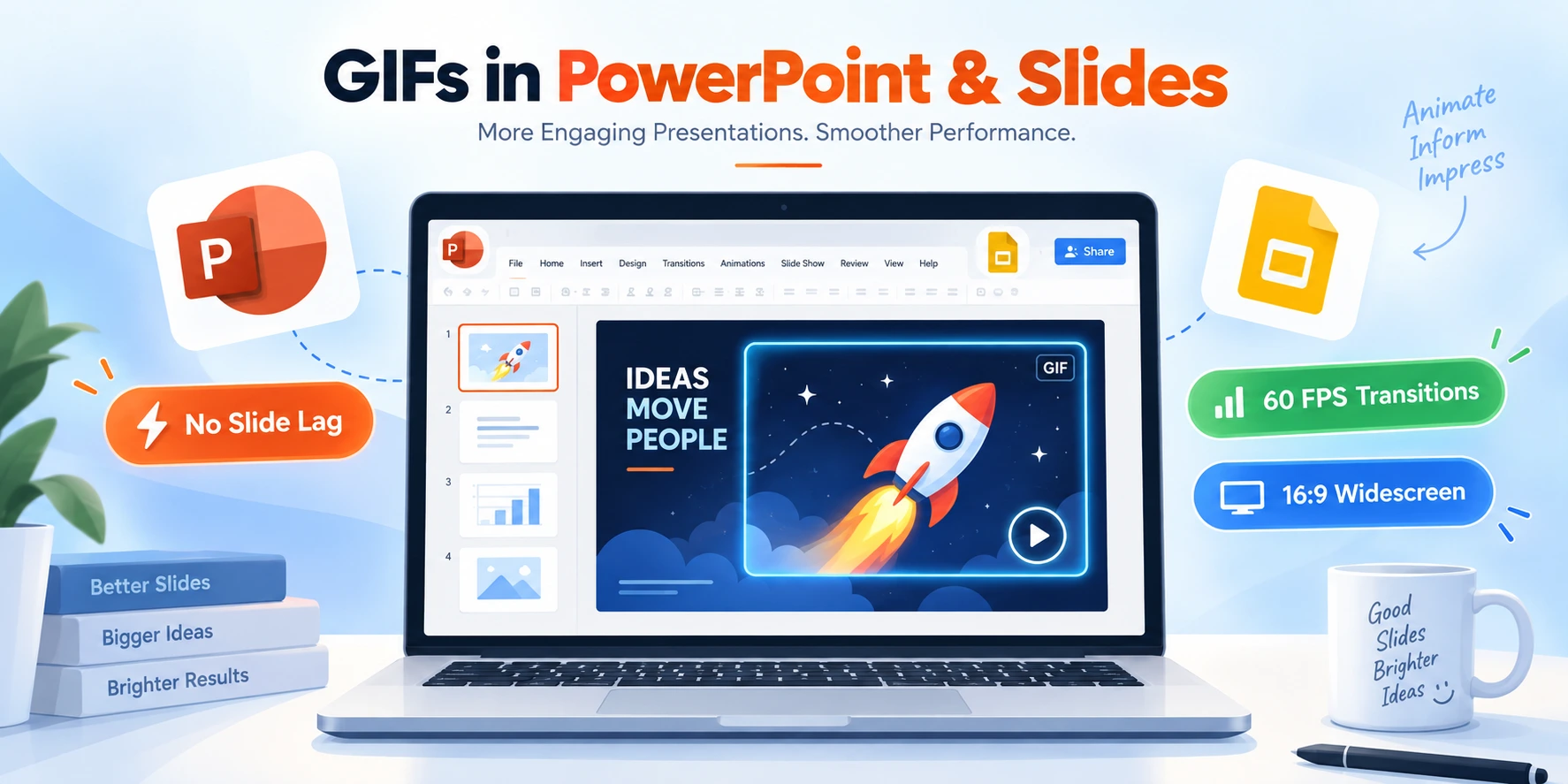
How to Add GIFs to PowerPoint & Google Slides (Without Lag or Crashing)
Static presentation slides are boring. Whether you are pitching to executive stakeholders, teaching a classroom full of students, or demonstrating software features, adding animated GIFs instantly commands attention, clarifies complex steps, and injects personality into your slide deck.
However, adding animations to slide decks can quickly turn into a presenter’s worst nightmare:
- Your PowerPoint presentation stutters, drops frames, or outright crashes during live transitions.
- Your
.pptxfile balloons from a breezy 5MB to a massive 120MB, making it impossible to email to clients. - Your animated GIF freezes into a lifeless, blurry still frame in Google Slides or PowerPoint presentation mode.
If you are struggling with presentation performance or trying to figure out how to add animated GIF to PPT without technical hiccups, this guide has you covered. You will learn the exact steps to insert and control GIFs in PowerPoint and Google Slides, the optimal resolution and frame rate settings for slide decks, and how to compress GIFs for presentations to keep your files lean, responsive, and lag-free.
How to Insert GIFs in Microsoft PowerPoint (Desktop & Web)
Microsoft PowerPoint treats animated GIFs as native image assets. Here is how to insert them across Windows, macOS, and PowerPoint for the Web:
Method 1: PowerPoint Desktop (Windows & Mac)
- Open your presentation and navigate to the slide where you want the animation.
- Go to the top ribbon menu and click Insert > Pictures > This Device (or Picture from File on Mac).
- Select your
.giffile and click Insert. - Resize and reposition the GIF on your canvas using the corner drag handles.
💡 Why is my GIF not playing in PowerPoint edit mode?
On many desktop versions of PowerPoint (especially PowerPoint 2016, 2019, and earlier builds), GIFs stay frozen on the first frame while you are editing slides. This is completely normal. To test playback, start Slide Show Mode by pressingF5(from beginning) orShift + F5(from current slide). Newer Microsoft 365 versions now support live GIF playback during editing!
Method 2: PowerPoint for the Web (Office 365 Online)
- Open your presentation in your web browser.
- Select Insert > Picture > This Device.
- Choose your GIF from your local computer.
- PowerPoint for the Web will automatically load and animate the GIF directly in the browser editor.
How to Insert GIFs in Google Slides
Google Slides offers seamless support for animated GIFs and animates them in real-time during both editing and Presentation mode (Ctrl + F5 or Cmd + Enter).
Option A: Upload from Your Computer (Recommended)
- Open your Google Slides deck.
- Click Insert > Image > Upload from computer (or click the Image icon on the main toolbar).
- Pick your GIF and click Open.
- Position your animation on the slide.
Option B: Insert Directly via URL (GIPHY or Web Links)
- Copy the direct image address of the GIF (must end in
.gif). - In Google Slides, click Insert > Image > By URL.
- Paste the image link and click Insert.
⚠️ Caution with URL Embeds: If the hosting website takes down or modifies the original GIF file, your Google Slide will display a broken image icon. Always download the GIF and upload it locally from your computer for reliable presentation delivery.
Why Large GIFs Cause Slide Stutter, Lag, and Crashes
Have you ever advanced to a slide containing an animated GIF, only for your laptop fan to spin up while the presentation freezes for 3 to 5 seconds?
Here is the technical reason why powerpoint gif lag happens:
- Uncompressed Frame Decoding: Video formats (like MP4) use intelligent temporal compression—they only render pixels that change between frames. In contrast, an animated GIF stores every single frame as a complete 256-color image. A 5-second, 30 FPS animation contains 150 discrete full-frame bitmaps.
- RAM Buffer Saturation: When PowerPoint switches to a slide with a 20MB GIF, your computer must decode all 150 frames into system memory simultaneously before rendering the slide transition.
- The PPTX File Bloat: When you save your deck, PowerPoint embeds the entire uncompressed
.gifdirectly into the.pptxarchive. If you have 5 or 6 uncompressed GIFs across your deck, your file size can easily exceed 100MB, triggering email bounce-backs and slow cloud syncing.
The Solution: Optimize and downscale your GIFs before inserting them. By tuning resolution, capping frame rates, and applying lossy LZW compression, you can shrink GIF file sizes by 70% to 85% with zero noticeable loss in presentation clarity.
Optimal GIF Settings for Slide Decks (Cheat Sheet)
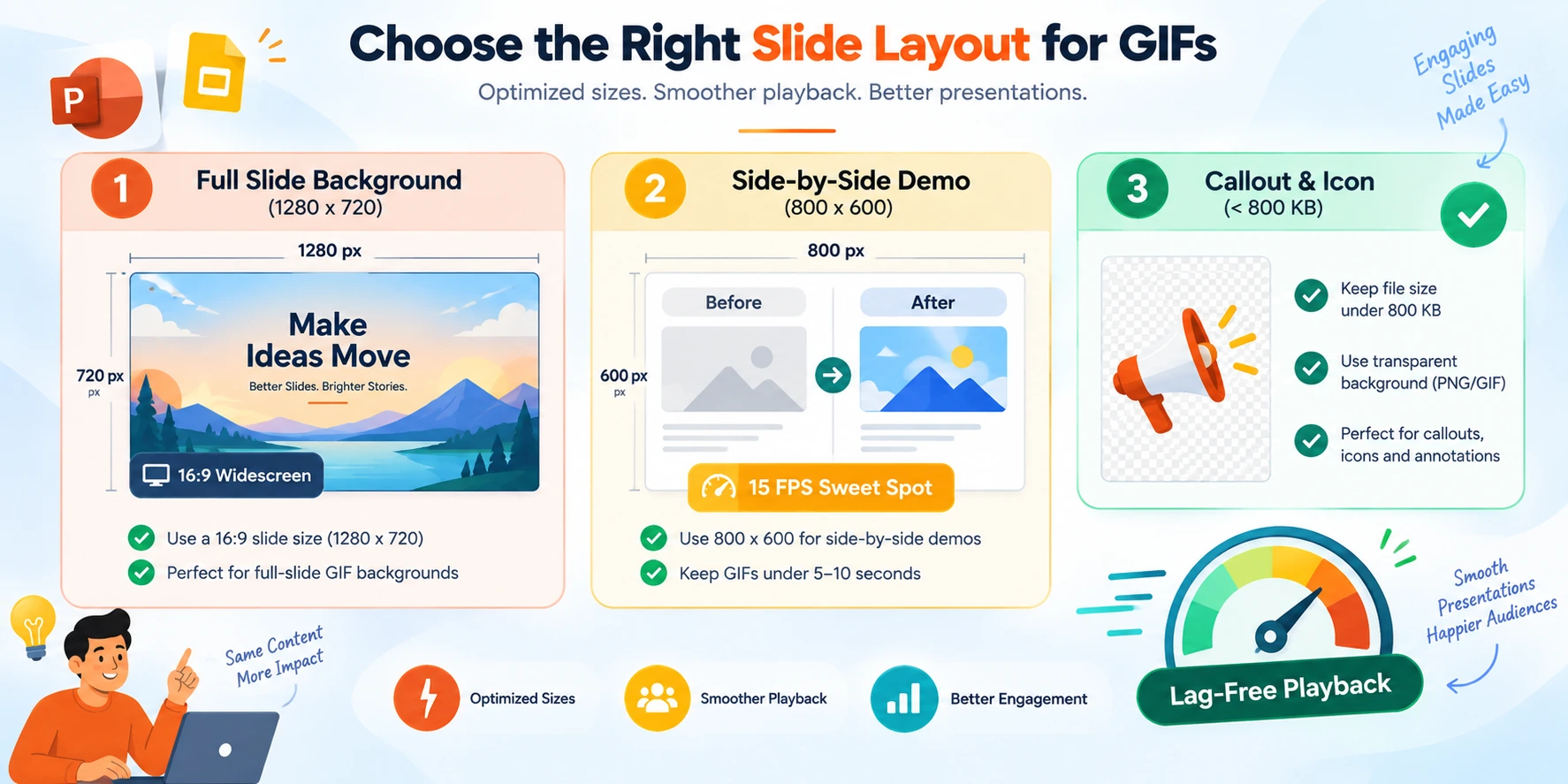
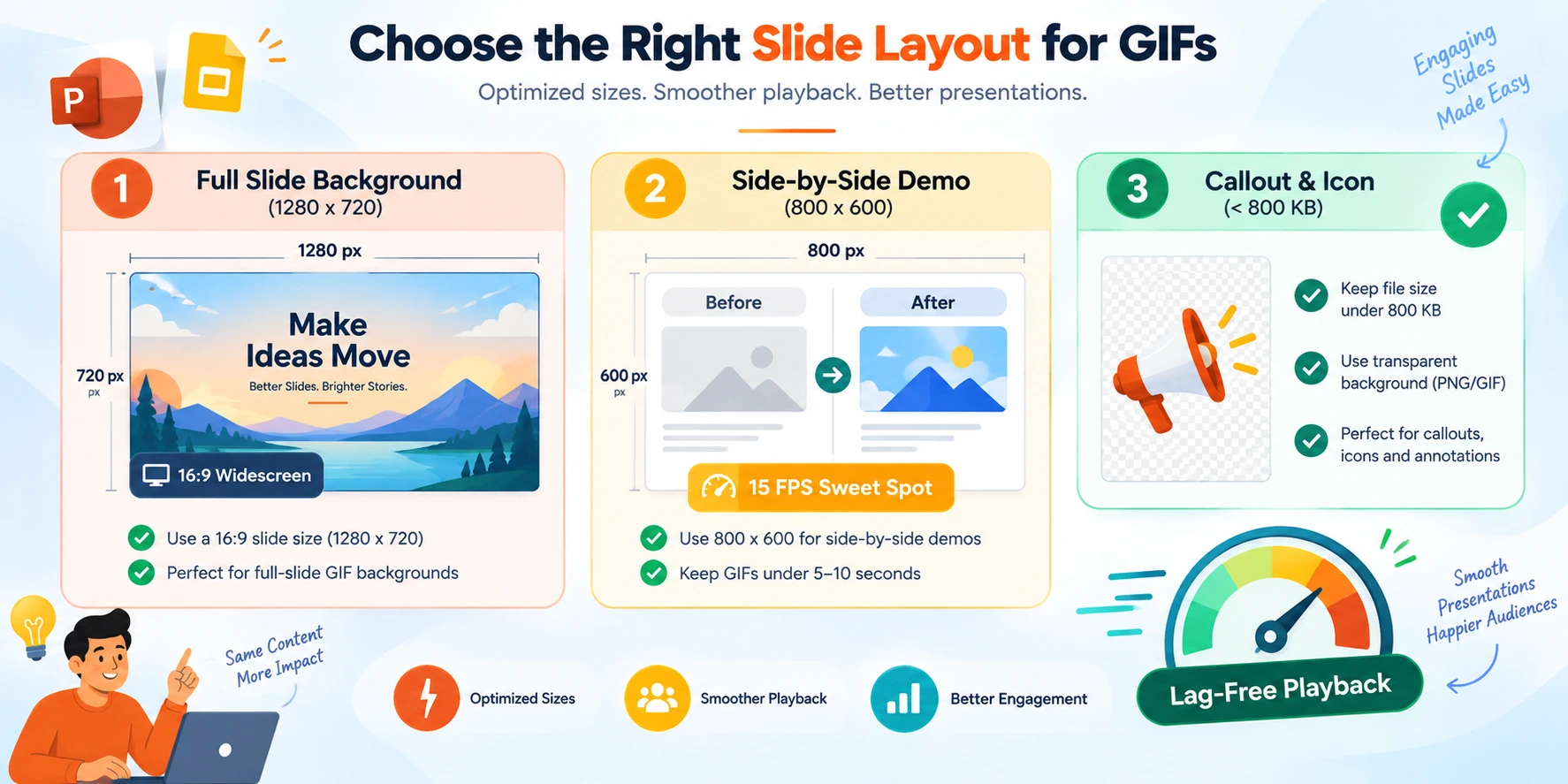
Matching your GIF’s dimensions and frame rate to your slide layout ensures silky-smooth 60 FPS transitions without overloading system RAM:
| Slide Placement & Purpose | Ideal Resolution | Frame Rate (FPS) | Color Depth | Target File Size |
|---|---|---|---|---|
| Full-Slide Background (16:9) | 1280 × 720 px (or 1920 × 1080) | 12–15 FPS | 128 Colors | < 2.5 MB |
| Side-by-Side / Half Slide | 800 × 600 px (or 960 × 540) | 15–18 FPS | 128–256 Colors | < 1.5 MB |
| Callout / Diagram Walkthrough | 600 × 400 px | 12–15 FPS | 64–128 Colors | < 800 KB |
| Small UI Icon / Emoji Badge | 256 × 256 px | 10–12 FPS | 64 Colors | < 250 KB |
Step-by-Step: How to Compress and Optimize GIFs for Presentations
Follow this simple 3-step workflow to prepare crisp, lightweight animations using our free browser-based tools.
Step 1: Convert Video Screen Recordings to GIF
If you recorded a software demonstration, UI interaction, or video clip (MP4/WebM/MOV):
- Open the Video to GIF Converter.
- Upload your screen recording.
- Trim the clip to show only the essential 3 to 6 seconds.
- Set the frame rate to 15 FPS (the sweet spot for smooth, lightweight slide animations).
- Click Convert and download your clean animation.
Step 2: Compress and Downscale Resolution
If you already have an oversized GIF:
- Open the Free GIF Compressor.
- Upload your
.giffile. - Choose your compression level (Medium or High).
- Scale down resolution (e.g., reduce a 1080p animation to 720p or 540p).
- Reduce color depth to 128 colors (saves 30–50% file size without visual banding).
- Click Compress to reduce your file below 1.5MB.
Step 3: Fine-Tune Playback Speed (Optional)
If your animation plays too slowly or takes too long to finish during your spoken pitch:
- Open the Change GIF Speed tool.
- Speed up the animation to 1.25x or 1.5x to keep your audience engaged and eliminate dead air.
- Re-download and insert the snappier version into your slide.
Troubleshooting: How to Fix Common Presentation GIF Errors
Problem 1: “My GIF only plays once and then stops”
- The Cause: The GIF was saved without an infinite loop header (NETSCAPE 2.0 loop extension block).
- The Fix: Run the animation through our Compress GIF or Reverse GIF tool, which automatically injects standard infinite looping headers.
Problem 2: PowerPoint crashes or freezes when changing slides
- The Cause: One or more embedded GIFs have excessive pixel resolutions (e.g., 4K or high-FPS 60 FPS captures), overflowing PowerPoint’s hardware graphics acceleration pipeline.
- The Fix: Re-encode the GIFs to 720p at 15 FPS. Ensure no individual GIF exceeds 3MB in size.
Problem 3: Google Slides shows “Unable to load image”
- The Cause: You inserted the GIF via an expired URL, or the file size exceeds Google Slides’ maximum inline image upload limit.
- The Fix: Download the GIF to your local hard drive, verify it is under 10MB, and upload it via Insert > Image > Upload from computer.
Best Practices for Presenting with Animated GIFs
- Limit to One GIF Per Slide: Multiple concurrent animations distract audiences, split viewer focus, and double the rendering load on your presentation software.
- Use GIFs to Clarify, Not Distract: Reserve animations for multi-step workflows, before-and-after comparisons, and key takeaways rather than random decorative elements.
- Mind the Contrast: Set a subtle border or background card behind your GIF so it stands out cleanly against your slide theme.
- Always Test on Presentation Hardware: Before presenting in an auditorium or over a Zoom screen share, run through your deck in full-screen presentation mode on the actual presentation machine.
Frequently Asked Questions (FAQ)
Why is my GIF not playing in PowerPoint?
In older versions of desktop PowerPoint, GIFs remain frozen while in Slide Edit view. You must switch to Slide Show mode (F5 or Shift + F5) to see the animation play.
Why does my GIF not play in Google Slides?
Google Slides plays GIFs automatically in both edit and presentation modes. If it fails to play, check that the file is under 25MB and uploaded directly from your computer rather than through an external web link.
How do I reduce my PowerPoint file size when using animated GIFs?
Compress your GIF files before inserting them. Using our Free GIF Compressor, reduce the dimensions to 720p/480p, drop frame rate to 15 FPS, and restrict the color palette to 128 colors.
Can you loop a GIF continuously in PowerPoint?
Yes. PowerPoint automatically loops animated GIFs continuously as long as the file contains an infinite loop metadata tag.
Summary & Free Presentation Tools
Enhancing your PowerPoint and Google Slides presentations with animated GIFs doesn’t have to cause embarrassing slide lag or bloated file sizes. By following three golden rules—resizing to slide dimensions, capping frame rates at 15 FPS, and running lossy compression—you can create interactive, memorable presentations that run smoothly on any projector or laptop.
Boost your presentation workflow with our free browser-based tools:
- Free GIF Compressor: Shrink deck file sizes by up to 80%.
- Video to GIF Converter: Turn screen recordings into slide-ready animations.
- Change GIF Speed: Speed up software demonstrations for concise presentations.
- Split GIF / Frame Extractor: Extract high-resolution still slides from animated sequences.

Written by Pradip Kaity
Software engineer & creator of FreeGifTools. Passionate about building fast, accessible browser-based tools for creators and developers.
Connect on LinkedIn →