How to Create Custom Slack Emojis & Animated Statuses from GIFs (128KB Guide)
How to Create Custom Slack Emojis & Animated Statuses from GIFs (128KB Guide)
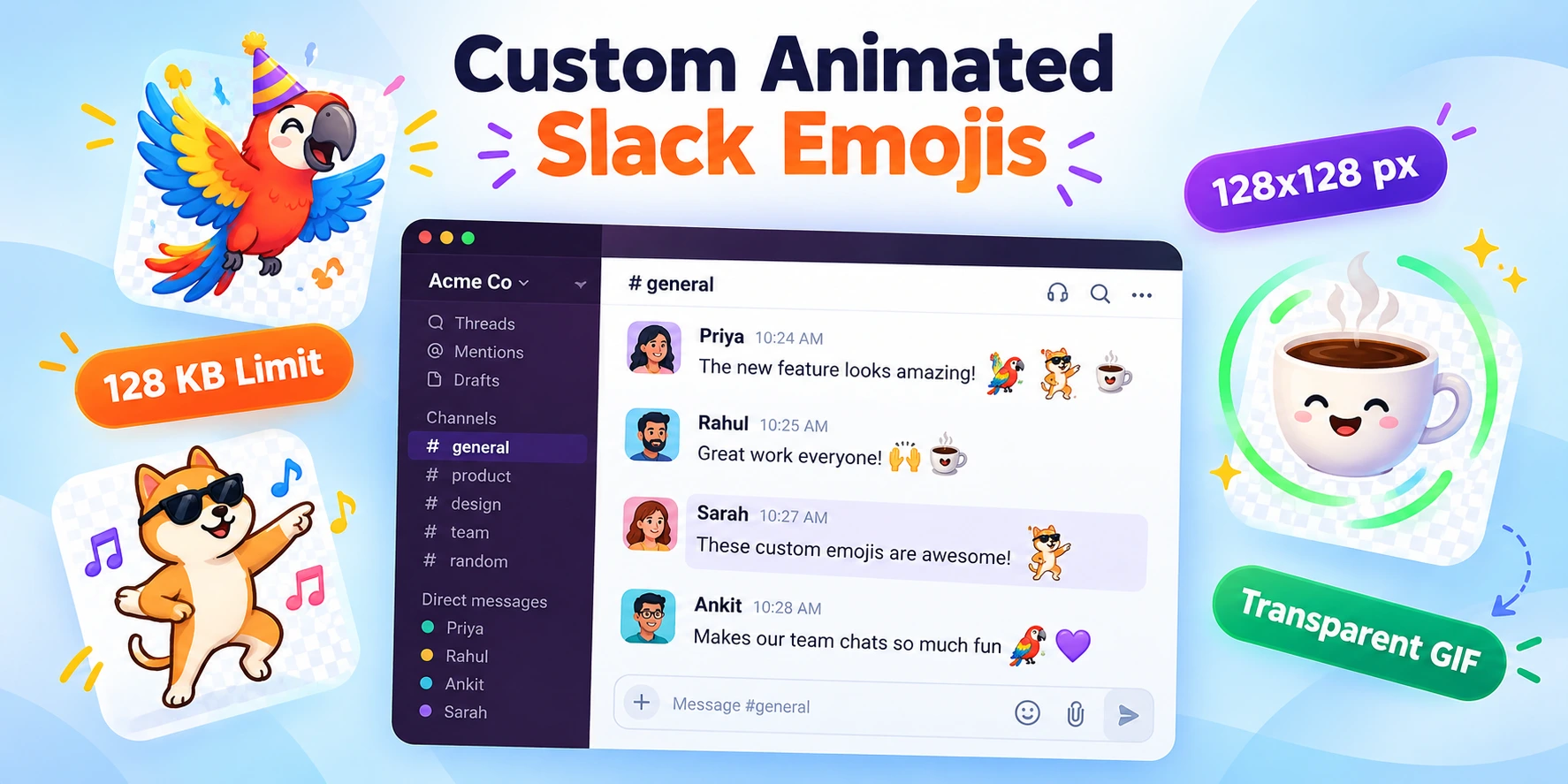
Custom emojis are the universal language of modern workplace culture. Whether it is celebrating a product release with a spinning party parrot, reacting to a bug fix with a dancing cat meme, or showing an animated coffee cup as your active status, custom animated emojis make remote work collaborative, expressive, and fun.
However, anyone who has tried uploading a GIF to Slack knows the immediate roadblock:
⛔ “The image is too large. Please upload an image smaller than 128KB.”
Slack enforces an uncompromising 128KB file size limit on all custom emoji uploads. Because most video clips and downloaded internet GIFs range from 500KB to over 10MB, your files will fail to upload unless they are properly downsized and optimized.
In this ultimate guide, you will learn the exact specifications for slack animated emoji size, how to compress and resize GIF for slack 128KB constraints without sacrificing animation clarity, and how to set up custom animated status icons for your Slack workspace.
Slack GIF Requirements & Constraints Cheat Sheet
Before you start converting memes or screen recordings, keep Slack’s technical parameters in mind:
| Specification | Requirement / Best Setting | Why It Matters |
|---|---|---|
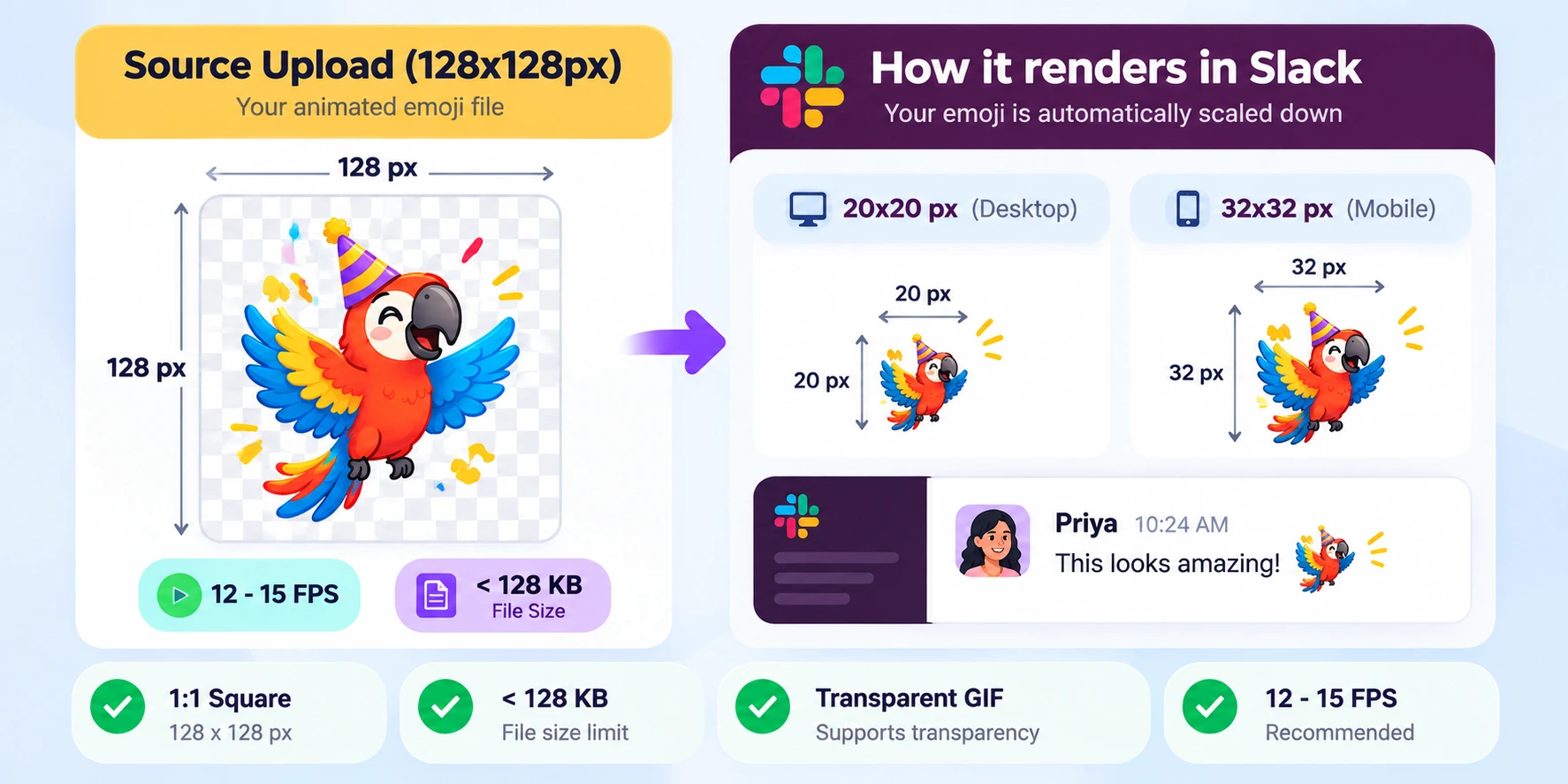
| Max File Size | 128 KB (131,072 bytes) | Hard ceiling enforced by Slack’s uploader. |
| Recommended Dimensions | 128 × 128 px | Ensures crisp display on 4K/Retina screens without pixelation. |
| Aspect Ratio | 1:1 (Square) | Non-square images get squished or letterboxed. |
| Chat Render Size | 20 × 20 px (Chat) / 32 × 32 px (Mobile) | Detail must remain readable at micro sizes. |
| Frame Rate (FPS) | 10 to 15 FPS | Smooth motion while keeping frame data lightweight. |
| Color Depth | 32 to 64 Colors | Drastically cuts file weight with no visible loss at small scale. |
| Background | Transparent (Recommended) | Looks flawless in both Slack Light Mode and Dark Mode. |
Why Is the 128KB Limit So Hard to Hit? (The Math of GIF Bloat)
To get a GIF under 128KB, it helps to understand why GIF files get so large in the first place:
- Every Frame Is an Image: Unlike modern MP4 videos that only store the pixels changing between frames, a GIF stores every single frame as an independent image bitmap.
- The 30 FPS Problem: A typical 3-second video clip recorded on a smartphone or computer has 90 frames (3 seconds × 30 FPS). Even at a small 128x128 resolution, 90 full-color frames will easily weigh 800KB to 1.5MB—more than 6 times Slack’s 128KB threshold!
- The 256-Color Overhead: GIFs support up to 256 indexed colors per frame. Reducing that color table to 64 or 32 colors instantly cuts file size in half without degrading the look of cartoons, memes, or UI icons.
The Solution: By reducing the animation to 1.0–2.0 seconds, dropping the frame rate to 12–15 FPS, and applying lossy LZW color compression, you can shrink any 5MB GIF down to 60KB–110KB, easily clearing Slack’s 128KB requirement.
Step-by-Step: How to Make & Compress a GIF for Slack Under 128KB
Follow this 4-step workflow using our free online tools to turn any video, screen recording, or downloaded GIF into a Slack-ready emoji.
Step 1: Crop and Scale to 128x128 Pixels
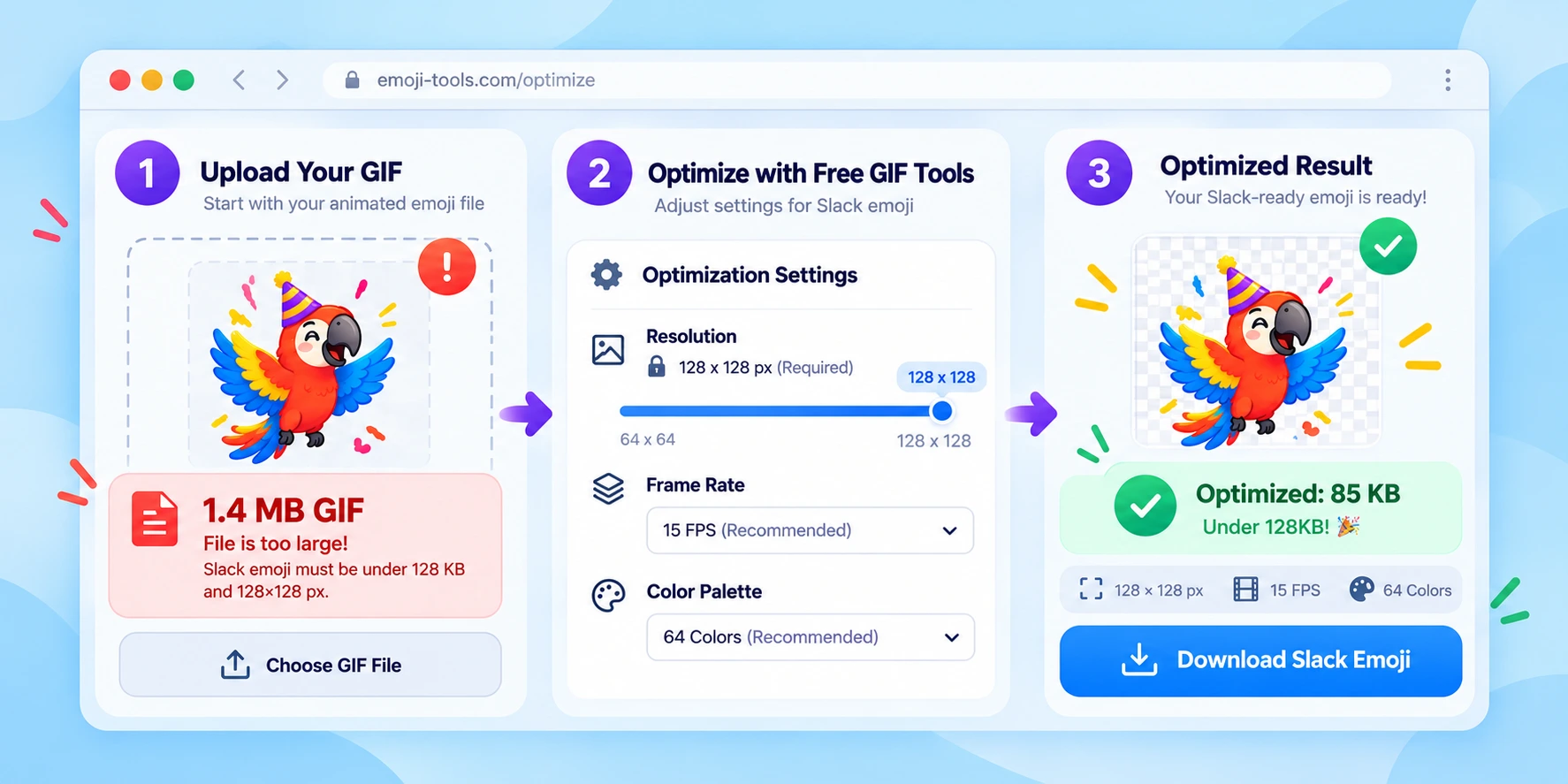
The single biggest factor in file size is pixel count. A 500x500 GIF contains 250,000 pixels per frame, whereas a 128x128 emoji contains only 16,384 pixels—a 93% reduction in raw pixel data!
- If you are starting from a video clip (MP4, WebM, MOV), open our Video to GIF Converter.
- Crop your subject into a tight 1:1 square so the character, face, or logo fills the center of the frame.
- Set output width and height to
128x128.
Step 2: Trim Duration & Cap Frame Rate (12–15 FPS)
Since emojis loop constantly in chat, shorter is better:
- Keep your animation duration between 1.0 and 2.0 seconds.
- Drop the frame rate from 30 FPS or 60 FPS down to 12–15 FPS.
- At 15 FPS, a 1.5-second animation only contains 22 frames, making it effortless to stay under 128KB.
Step 3: Apply Color Reduction & Lossy Compression
Now, optimize the color palette using our dedicated optimizer:
- Open the Free GIF Compressor.
- Upload your resized 128x128 GIF.
- Select your compression level (choose Medium or High).
- Restrict color depth to 64 colors (or 32 colors for simple logos/text).
- Click Compress and verify that the output file size is under 128 KB (e.g. 85 KB or 110 KB).
- Download your optimized Slack emoji GIF.
Step 4: Speed Up Playback for Snappy Animation (Optional)
If your animation feels a bit sluggish after trimming frames:
- Open our Change GIF Speed tool.
- Speed up the playback rate to 1.25x or 1.5x.
- A faster cycle creates that energetic, hyperactive vibe characteristic of top Slack reaction emojis (like
:party_parrot:or:fast-typing:).
How to Upload Your Custom Animated Emoji to Slack
Once you have your under-128KB GIF saved on your computer, uploading it to your workspace takes just 15 seconds:
On Desktop (Mac & Windows App / Web):
- Open Slack and click the Smiley Face (Emoji icon) in any message input bar.
- Click the Add Emoji button at the bottom left of the emoji picker.
- Click Upload Image and select your optimized
.giffile. - Give your emoji a unique name/shortcode (e.g.
party-blob,lets-go, ormind-blown). - Click Save.
Your custom animated emoji is now immediately accessible to everyone in your workspace!
How to Set an Animated Custom Emoji as Your Slack Status
Want a dancing mascot, a pulsing battery icon, or a spinning coffee cup next to your name in user lists and channels?
- Click your Profile Picture in the top-right corner of Slack (or bottom-left on desktop).
- Click Update your status (or click on your current status text).
- Click the Smile/Status Icon on the left side of the status text box.
- Search for or select your custom uploaded animated emoji.
- Enter your status text (e.g., “Focusing on deep work”, “In the zone”, or “Grabbing coffee”).
- Set your status clear timer and click Save.
Your custom animation will now loop continuously beside your name across all channels and direct messages!
4 Pro-Tips for Designing Viral Slack Emojis
- Use Transparent Backgrounds: A white square box around your character looks messy in Slack’s Dark Mode. Always remove background pixels so your animation blends seamlessly against any theme background.
- Exaggerate Movements & Contrast: Because emojis shrink down to 20x20 pixels in conversation threads, subtle details get lost. Use bold outlines, vibrant colors, and exaggerated motions.
- Keep the Subject Centered: Zoom in close on faces, icons, or text so the key element dominates the 128x128 canvas.
- Make the First Frame Recognizable: Slack occasionally pauses animations when low-power mode or reduced-motion settings are enabled on a user’s device. Ensure the first frame looks great even as a static icon.
Troubleshooting Common Slack Emoji Upload Errors
Error 1: “The image is too large. Please upload an image smaller than 128KB”
- Fix: Your file is slightly over the limit. Upload it to our GIF Compressor, lower colors to 32 or 48, and re-download.
Error 2: “There was an error processing your emoji”
- Fix: The GIF may have corrupted frame delay headers or exceed 500x500 source dimensions. Run it through Video to GIF to regenerate clean, standard GIF headers.
Error 3: The emoji is blurry or hard to see in chat
- Fix: The source subject was framed too far away. Crop your source image tightly around the central character or logo before resizing to 128x128.
Frequently Asked Questions (FAQ)
What is the maximum file size for a custom Slack emoji?
Slack strictly limits all custom emoji and animated GIF uploads to 128 KB (131,072 bytes). Files exceeding this size cannot be uploaded.
What are the ideal dimensions for a Slack animated emoji?
The recommended dimensions are 128x128 pixels in a 1:1 square aspect ratio. This ensures high-DPI sharpness on desktop screens while loading quickly in mobile feeds.
How do I compress a GIF to under 128KB for Slack?
Resize the image to 128x128 pixels, trim duration to 1–2 seconds, cap frame rate at 12–15 FPS, and use our Free GIF Compressor to reduce the color palette to 64 or 32 colors.
Can I use an animated GIF as my Slack profile status?
Yes. Once you upload an animated GIF as a custom emoji to your workspace, you can select it as your custom status icon from your profile settings.
Summary & Free GIF Tools for Slack Creators
Creating custom animated emojis for Slack doesn’t require complex graphic design skills. By cropping to 128x128, trimming down to 15 FPS, and applying color reduction, you can make any GIF fit under Slack’s 128KB threshold in seconds.
Get started with our free, browser-based tools:
- Free GIF Compressor: Shrink any GIF down to under 128KB with zero signup required.
- Video to GIF Converter: Convert screen clips and meme videos into 128x128 animated emojis.
- Change GIF Speed: Speed up reaction animations for dynamic Slack chat interactions.
- Split GIF / Frame Extractor: Extract individual frames or fix awkward loop points.

Written by Pradip Kaity
Software engineer & creator of FreeGifTools. Passionate about building fast, accessible browser-based tools for creators and developers.
Connect on LinkedIn →