Discord GIF Size Limits & Compression Guide (PFP, Banner, & Emoji)
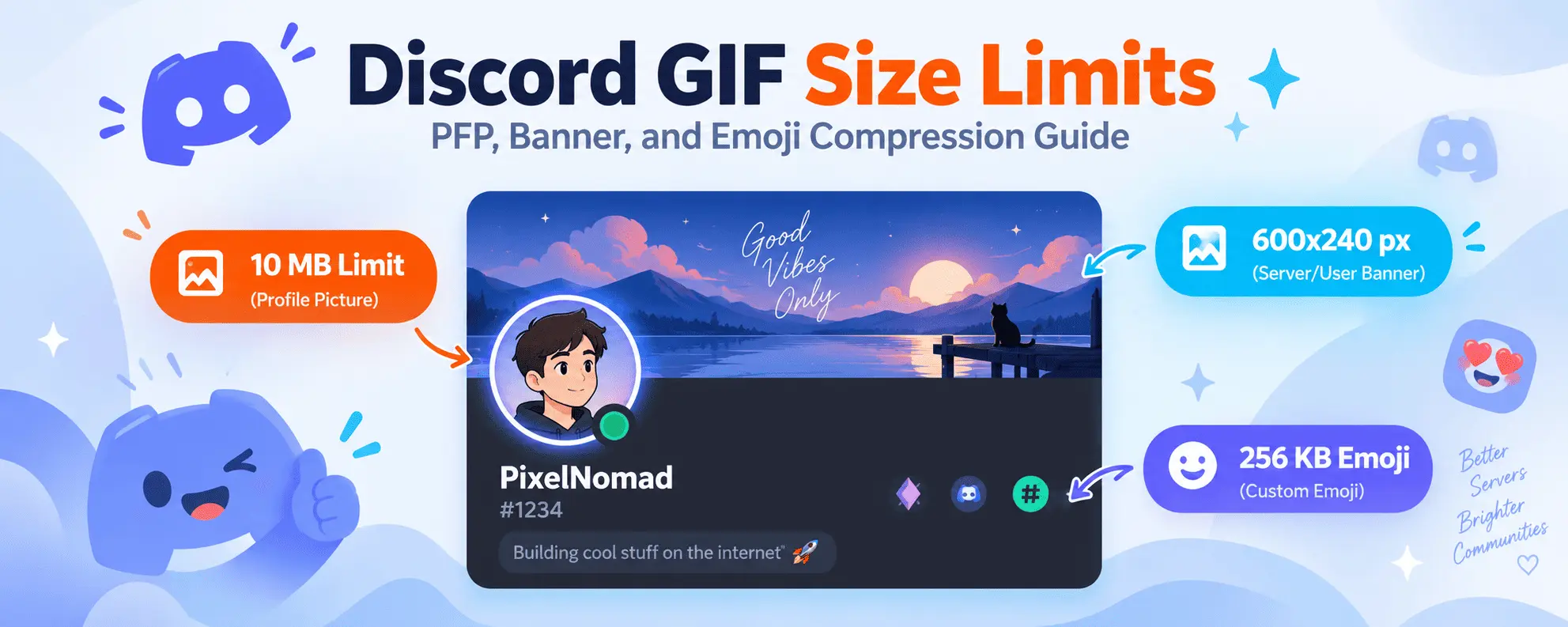
Discord GIF Size Limits & Compression Guide (PFP, Banner, & Emoji)
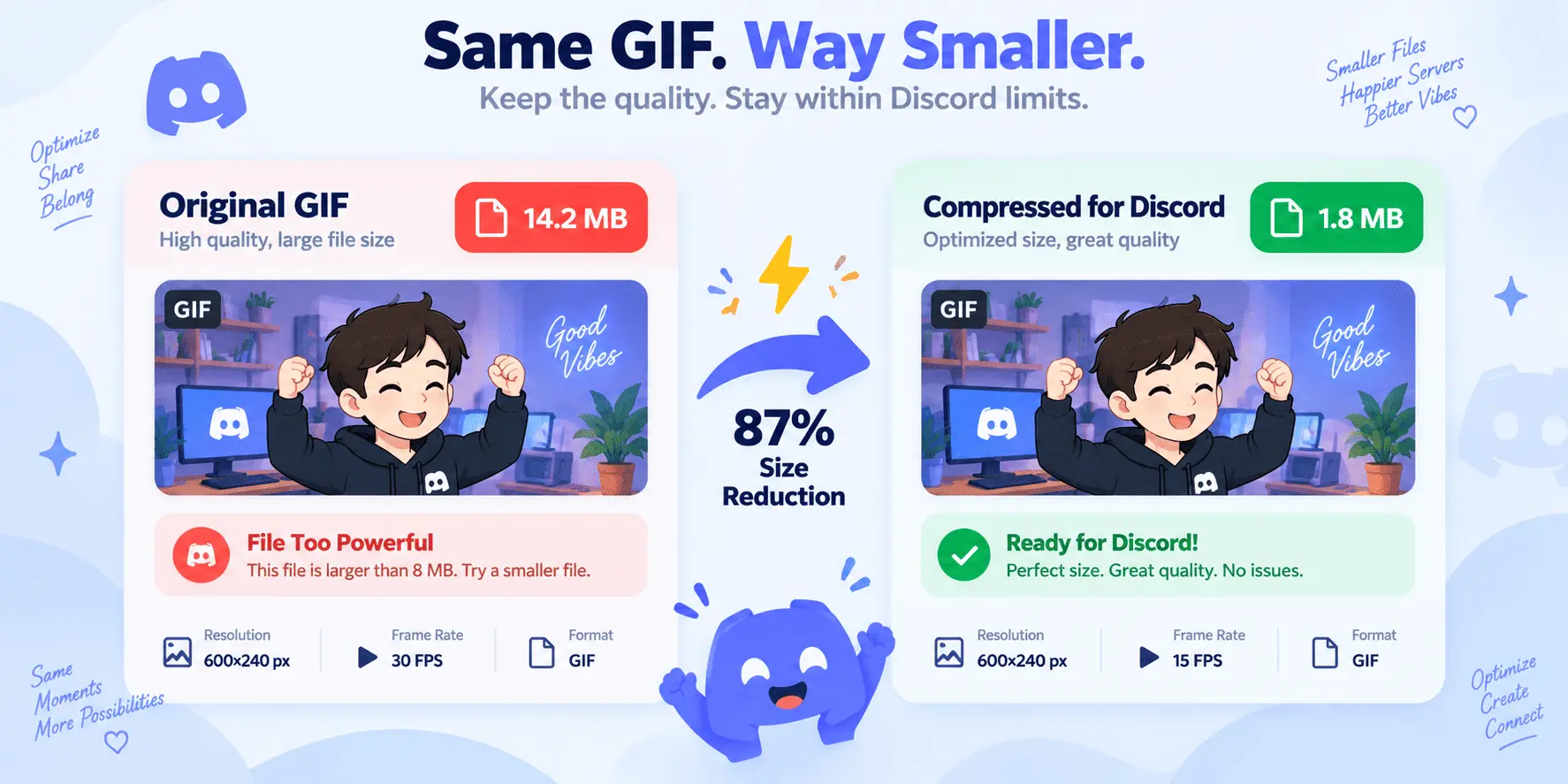
If you have ever tried uploading a custom animated avatar, a flashy profile banner, or a hilarious custom emoji to Discord, chances are you have encountered the infamous error message: “Your files are too powerful!”
Discord is one of the most popular platforms for sharing animated GIFs, memes, and custom profile aesthetics. However, to keep servers fast and responsive, Discord enforces strict upload constraints. Exceeding the Discord GIF size limit prevents your file from uploading or forces Discord to compress it into a blurry, stuttering mess.
In this ultimate guide, you will discover the exact size, dimension, and aspect ratio requirements for every Discord asset in 2026—including animated profile pictures (PFPs), banners, custom emojis, stickers, and chat uploads. You will also learn step-by-step techniques to compress GIFs for Discord while preserving crystal-clear visual quality.
Discord GIF Size Limits: Quick Reference Cheat Sheet
Before diving into the optimization steps, here is a breakdown of Discord’s current dimension, aspect ratio, and file size thresholds:
| Discord Asset Type | Max File Size | Recommended Resolution | Aspect Ratio | Nitro Required? |
|---|---|---|---|---|
| Animated Avatar (PFP) | 10 MB | 128 × 128 px (or 256 × 256 px) | 1:1 (Square) | Yes (Nitro / Nitro Basic) |
| Profile Banner | 10 MB | 600 × 240 px | 5:2 (2.5:1) | Yes (Nitro) |
| Server Banner | 10 MB | 960 × 540 px | 16:9 | Yes (Server Boost Level 2/3) |
| Custom Animated Emoji | 256 KB | 128 × 128 px (rendered at 32 × 32 px) | 1:1 (Square) | No (Requires Nitro to use globally) |
| Animated Sticker | 500 KB | 320 × 320 px | 1:1 (Square) | Server Upload / APNG format |
| Chat Attachments (Free) | 10 MB | Any (Under 1920 × 1080 px recommended) | Any | No |
| Chat Attachments (Nitro) | 500 MB (Nitro) / 50 MB (Basic) | Any | Any | Yes |
Deep Dive: Discord GIF Requirements by Asset Type
Understanding the exact specifications for each asset ensures you never waste time guessing why your upload failed.
1. Discord Animated Avatar / PFP (Profile Picture)
Your avatar represents your identity across servers and direct messages. While static avatars can be uploaded by any user, animated GIF avatars require Discord Nitro or Nitro Basic.
- Maximum File Size: 10 MB (Discord’s upload ceiling, but keep it under 2 MB for faster loading).
- Recommended Dimensions:
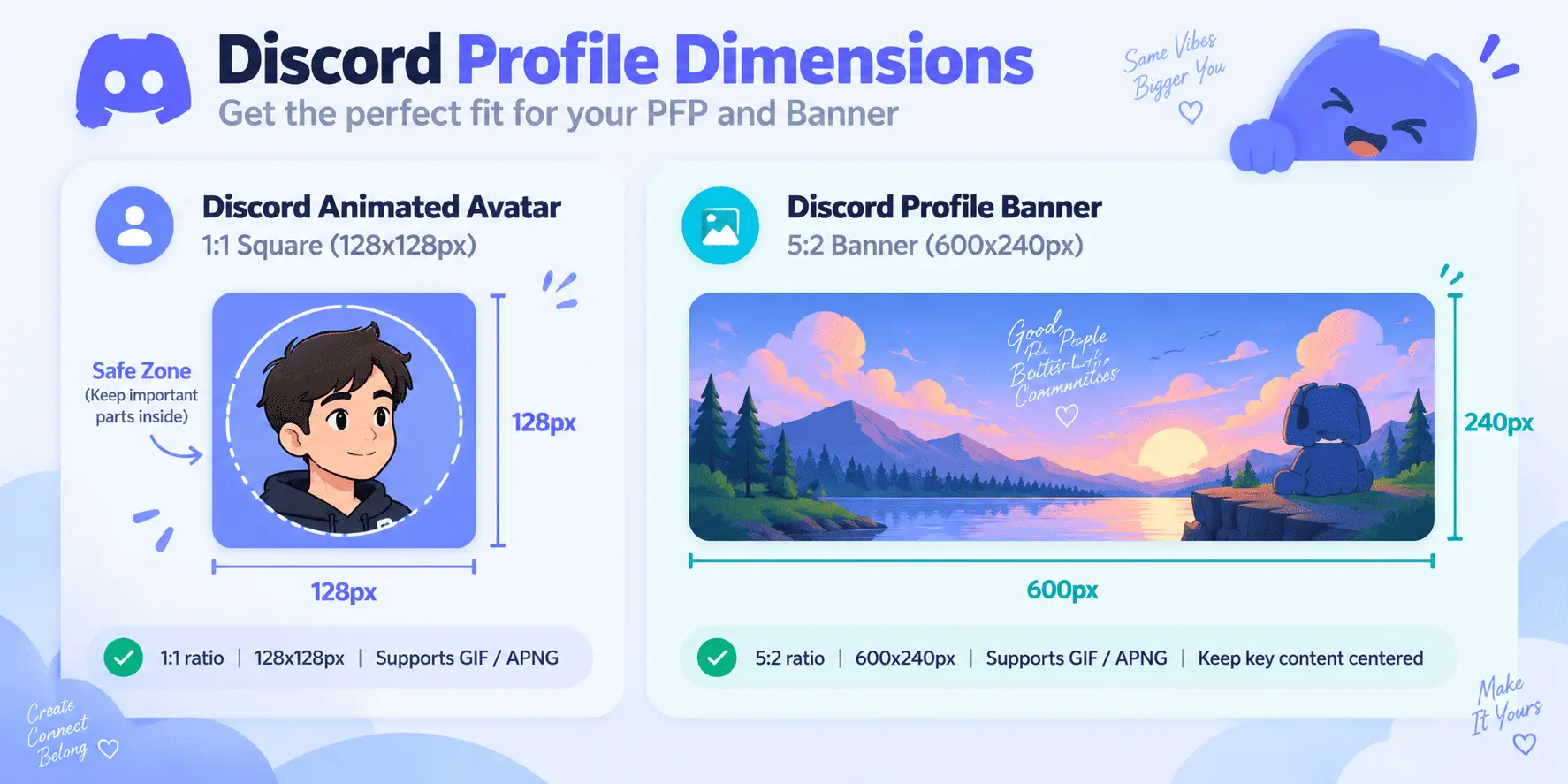
128 x 128 pxor256 x 256 px. - Aspect Ratio:
1:1(Exact square). - Frame Rate:
15 to 25 FPS.
# Optimal Discord PFP Settings
Format: Animated GIF
Resolution: 256x256 px
Frame Rate: 20 FPS
Duration: 2 - 4 seconds (Seamless loop)
Color Depth: 128 - 256 Colors
Target Size: 500 KB - 2 MB
Pro-Tip for Avatars: Discord masks profile pictures into a circle. Keep all essential text, faces, or subject matter centered so corners are not clipped when displayed in user lists and voice channels.
2. Discord Animated Profile & Server Banners
A custom profile banner sits prominently behind your avatar on your Discord user card and full-page profile modal.
- Profile Banner Resolution:
600 x 240 px(Aspect ratio:5:2or2.5:1). - Server Banner Resolution:
960 x 540 px(Aspect ratio:16:9). - Maximum File Size: 10 MB.
- Duration: 3 to 6 seconds.
Because banners cover a wider horizontal area, uncompressed GIFs can quickly exceed 15–20 MB. Cropping your video or GIF to the exact 5:2 aspect ratio before compression prevents ugly black letterboxing and unnecessary pixel bloat.
3. Custom Animated Emojis (The 256 KB Challenge)
The hardest Discord asset to optimize is the custom animated emoji. Discord imposes an uncompromising 256 KB file size limit on server emojis.
- Maximum File Size: Exactly
256 KB(262,144 bytes). - Dimensions:
128 x 128 px(standard display is 32x32 px in chat or 48x48 px on mobile). - Frame Rate:
10 to 15 FPS. - Duration: Under 2 seconds.
If your emoji is even 1 kilobyte over 256 KB, Discord’s uploader will immediately reject it. To make a GIF fit this threshold, you must combine resolution downscaling with lossy color reduction. If you want to make viral animated reaction memes like the spinning heart pendant, use our free My Beloved GIF Maker with the dedicated 128×128 Discord Emote preset. For workplace channels, you can also check our guide on how to create custom Slack emojis under 128KB.
4. Discord Chat Message Attachments
Sharing GIFs in public server channels or direct messages is subject to Discord’s general file upload limits:
- Free Accounts: 10 MB per file.
- Nitro Basic ($2.99/mo): 50 MB per file.
- Nitro Standard ($9.99/mo): 500 MB per file.
Even if you have Nitro and can upload up to 500 MB, massive GIFs create lag for mobile users and take forever to buffer in chat streams. Compressing your chat GIFs to under 5 MB guarantees instantaneous playback for everyone on the channel.
Step-by-Step: How to Compress a GIF for Discord Without Quality Loss
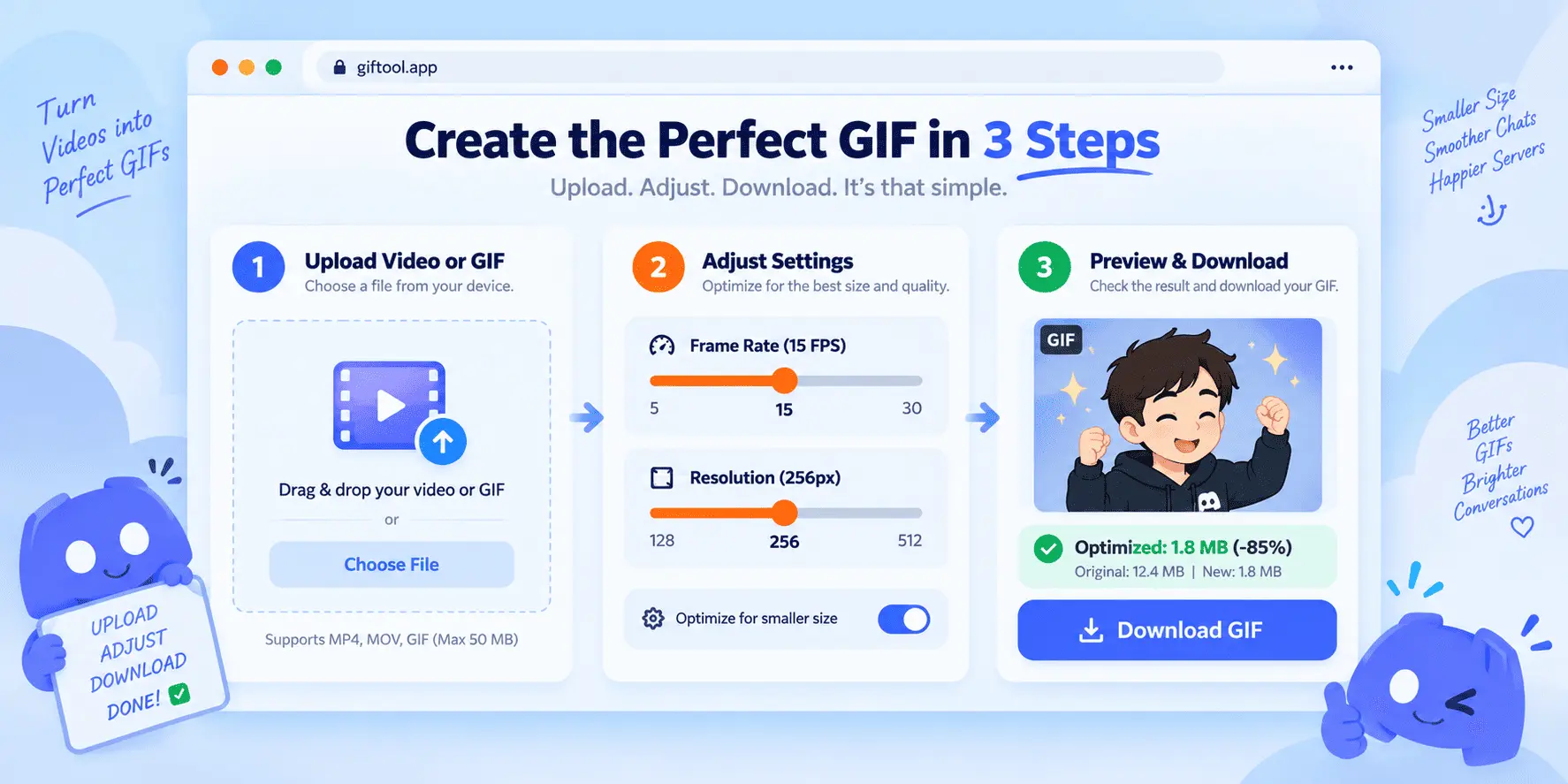
Follow this 4-step workflow using our free browser-based tools to shrink any video or oversized GIF down to Discord’s exact specifications.
Step 1: Crop and Resize to Target Dimensions
The single most effective way to reduce file size is scaling down the pixel dimensions. A 1080p animation contains over 2 million pixels per frame, whereas a 256x256 avatar contains only 65,536 pixels per frame—a 96% reduction in raw data!
- For PFPs: Resize to
128x128 pxor256x256 px. - For Profile Banners: Crop to
600x240 px. - For Emojis: Scale directly to
128x128 px.
Step 2: Trim Length and Optimize Frame Rate (FPS)
Standard video records at 30 to 60 frames per second (FPS). However, the human eye perceives smooth cartoon and meme animation at just 12 to 18 FPS.
- Cut out unnecessary intro or outro frames.
- Reduce frame rate from 30 FPS to 15 FPS (instantly cuts 50% of the file size).
- If your GIF plays too slowly after dropping frames, use our Change GIF Speed tool to restore natural timing.
- For complex animations with duplicate or glitchy frames, you can edit the GIF frame by frame to strip redundant data.
Step 3: Apply Lossy GIF Compression & Color Quantization
The GIF specification uses LZW compression and supports a maximum palette of 256 colors. Lossy compression works by merging nearly identical shades and eliminating invisible noise across consecutive frames.
- Open the dedicated Discord GIF Compressor with built-in ”< 8MB (Discord Free)”, ”< 25MB (Nitro)”, and ”< 256KB (Emote)” quick-action presets.
- Upload your GIF or converted video clip.
- Select your desired compression level (Low, Medium, or High).
- Reduce the color palette from 256 colors to 128 or 64 colors (especially critical for emojis).
- Click Compress and download your optimized GIF.
Step 4: Verify Seamless Looping
A high-quality Discord avatar or banner should loop cleanly without an abrupt jump or stutter. If your animation has an awkward transition at the end:
- Use our Reverse GIF tool to create a smooth ping-pong boomerang effect.
- Or trim the start and end points so the first and last frames match visually.
Troubleshooting Common Discord GIF Errors
Problem 1: “Your file is too powerful”
- The Cause: Your file size exceeds 10 MB (for free users) or 256 KB (for custom emojis).
- The Fix: Upload your file to our GIF Compressor and set the output size below the required limit.
Problem 2: My Discord Banner is Blurry or Stretched
- The Cause: You uploaded an image with a standard 16:9 or 4:3 aspect ratio instead of the required 5:2 profile banner ratio. Discord stretched the image to fill the container.
- The Fix: Crop your source video or GIF to
600x240 pixelsbefore uploading.
Problem 3: Animated Emoji Won’t Animate in Chat
- The Cause: The file was uploaded as a static
.pngor exceeds the 256 KB ceiling, causing Discord to freeze the first frame. - The Fix: Ensure the file extension is
.gif, dimensions are128x128 px, and file size is strictly under 256 KB.
Free Online Tools for Discord GIF Creators
You don’t need expensive software like Adobe Photoshop or Premiere Pro to create studio-quality Discord animations. You can perform all necessary edits directly in your browser:
- Video to GIF Converter: Convert MP4, WebM, and MOV screen captures or gameplay clips into animated GIFs.
- Discord GIF Compressor: Hit exact < 8MB, < 25MB, and < 256KB limits with 1 click.
- Change GIF Speed: Speed up reaction memes or create slow-motion avatar loops.
- Reverse GIF: Make seamless rewinding boomerangs for banners and avatars.
- Split GIF / Frame Extractor: Break down GIFs frame-by-frame to extract the perfect still profile picture (or follow our full frame-by-frame guide).
Frequently Asked Questions (FAQ)
What is the maximum GIF size limit for Discord?
For standard chat attachments, Discord allows up to 10MB for free users, 50MB for Nitro Basic, and 500MB for Nitro subscribers. For animated profile avatars (PFP) and banners, the maximum upload limit is 10MB, while custom animated emojis are strictly capped at 256KB.
Why does Discord say “Your files are too powerful”?
This error occurs when your GIF exceeds Discord’s file size threshold for your account tier. You can fix this instantly by using our Free GIF Compressor to reduce resolution, frame rate, or color depth.
What are the ideal dimensions for a Discord GIF profile picture (PFP)?
The recommended resolution for a Discord animated avatar is 128x128 pixels (1:1 square aspect ratio), though Discord accepts up to 512x512 pixels. Keeping it at 128x128 or 256x256 pixels ensures crisp rendering and rapid loading across all devices.
How do I compress a GIF to under 256KB for a Discord emoji?
To fit into Discord’s 256KB emoji limit, resize the GIF to 128x128 pixels, lower the frame rate to 10–15 FPS, shorten the duration to 1–2 seconds, and reduce the color palette to 64 or 128 colors.
Summary & Next Steps
Optimizing GIFs for Discord comes down to three fundamental rules:
- Match the exact aspect ratio (1:1 for PFPs and Emojis, 5:2 for Profile Banners).
- Cap your frame rate at 15–20 FPS to eliminate redundant frames.
- Use lossy LZW compression to trim excess color data without visible degradation.
Ready to optimize your Discord profile? Jump into our Free GIF Compressor or Video to GIF Converter to create stunning, lightweight Discord GIFs in seconds!
Frequently Asked Questions
What is the maximum GIF size limit for Discord?
For standard chat attachments, Discord allows up to 10MB for free users and up to 500MB for Nitro subscribers. For animated profile pictures (PFP) and banners, the maximum upload limit is 10MB, while custom animated emojis are strictly capped at 256KB.
Why does Discord say 'Your files are too powerful'?
This error occurs when your GIF exceeds Discord's file size threshold for your account tier (10MB for free accounts, or 256KB for custom emojis). You can fix this instantly by using an online GIF compressor to reduce resolution, frame rate, or color depth.
What are the ideal dimensions for a Discord GIF profile picture (PFP)?
The recommended resolution for a Discord animated avatar is 128x128 pixels (1:1 square aspect ratio), although Discord accepts up to 512x512 pixels. Uploading at 128x128 or 256x256 pixels ensures crisp rendering while keeping the file size lightweight.
How do I compress a GIF to under 256KB for a Discord emoji?
To fit into Discord's 256KB emoji limit, resize the GIF to 128x128 pixels, lower the frame rate to 10-15 FPS, shorten the duration to 1-2 seconds, and reduce the color palette to 64 or 128 colors using a free GIF compressor.
Written by Pradip Kaity
Software engineer & creator of FreeGifTools. Passionate about building fast, accessible browser-based tools for creators and developers.
Connect on LinkedIn →